
What is My Blocks?
The My Blocks feature in Elements Rocket allows you to upload/save your own Elementor sections directly inside your Elements Rocket account. Created a section you liked? Save it in My Blocks to keep it handy for later use in future projects. It is your personal block library inside Elements Rocket. It works as a practical library and organization system for your own Elementor designs.
My Blocks slot limits
The number of blocks you can save depends on your Elements Rocket plan. If you are using the Free plan, you can save one Elementor section in My Blocks. If you are using the Pro plan, you can save dozens, giving you much more room to build your own reusable design library.
Where to find My Blocks
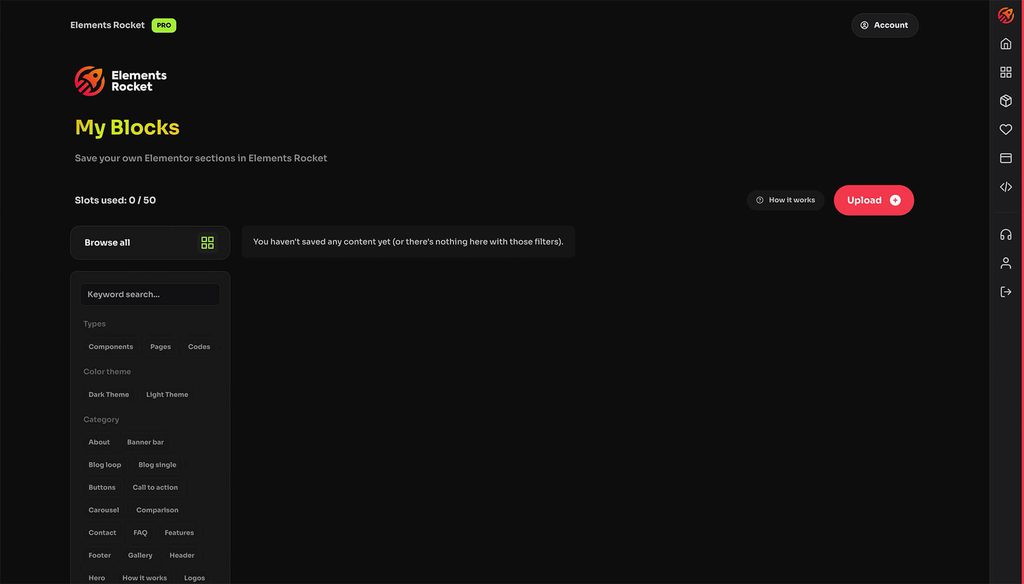
My Blocks is accessible through the Elements Rocket sidebar, the My Blocks button on the main dashboard and through buttons spread across Elements Rocket. You can’t miss it. If you’re logged in, you can also just click here. All of these buttons take you to the same area: the My Blocks dashboard, where you can view, organize, upload, and manage your saved Elementor blocks:
How to use My Blocks
Copying the content
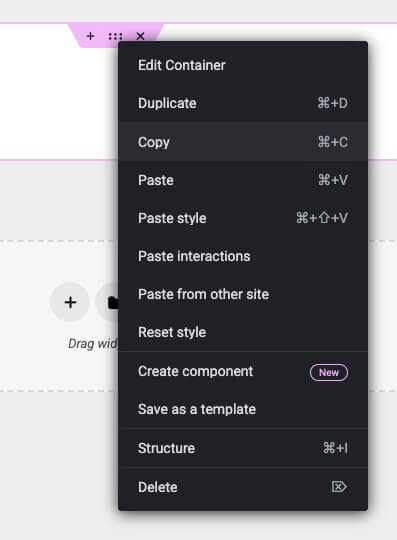
To save your own Elementor section in My Blocks, first you need to copy the Elementor section you want to save. In your Elementor editor, simply right click the Elementor section and click on Copy.
Saving into My Blocks
After copying, go to the My Blocks dashboard inside Elements Rocket and click Upload. A modal window will open. This is where you will add the information for your saved block. Inside the upload modal, fill out the fields.
1. Name your component
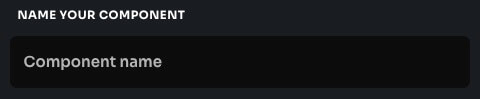
Here, you’ll need to give your Block a name. We recommend making it short and simple.A void vague names like “Section 1” or “New Block.” Use names that describe the block’s purpose, layout, or style.
2. Content
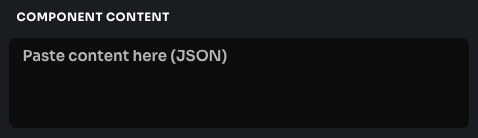
Here, paste the copied Elementor section into the content field. This is the most important part of the upload process. The content field stores the Elementor data so Elements Rocket can save it and make it available for future use. Make sure you copied the correct Elementor section before pasting it. After pasting, you will see a large body of text/code fill out the field. That your content’s JSON, and that’s expected to happen.
3. Tag/Categories (Optional)
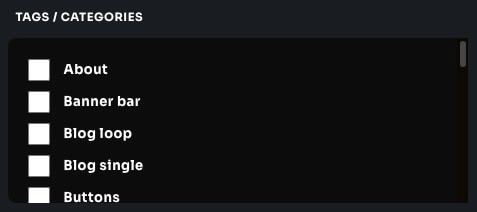
In this field you are able to assign tags/categories to your block using the pre-defined tags from Elements Rocket.
4. Choose a thumbnail image
You can also upload a thumbnail image for your saved block, if you want! This step is optional, but recommended. A thumbnail makes your block easier to recognize visually, especially when you have multiple saved items. If you do not upload a thumbnail, the Elements Rocket default image will be used.
5. Upload! 🚀
After filling in the block information, you must read and agree to the My Blocks’ Term of Use. Then, click on the final Upload button. Your Elementor section will now be stored inside My Blocks and available in your Elements Rocket account’s My Blocks page. From there, you can use My Blocks as your personal backup and reusable section library.
Important
Size limits
The My Blocks feature has size/storage limitation per uploaded block. They are very generous! However, if you try to upload an Elementor section containing huge and heavy images, for instance, you may hit those limits and the upload will not be completed (you will see an error notification letting you know).
Downgrading from Pro
Free users have 1 block slot to use. Pro users have dozens. If you are a Pro user and decide to downgrade to the Free plan, you will be able to access previously saved content, but will not be able to save new ones. Refer to the Terms of Use for further information.
TL;DR
The My Blocks feature gives you a simple way to save your own Elementor sections inside Elements Rocket. You can access it from the sidebar or from the main dashboard, click Upload, name and categorize your block, paste the copied Elementor section into the content field, and optionally upload a thumbnail image. Free users can save 1 block, while Pro users can save up dozens. Use My Blocks to back up your favorite Elementor sections, organize your reusable layouts, and build your own personal block library inside Elements Rocket.
Need further help?
Most common issues can be resolved through the articles. However, if you need further help, we’re here for you. Reach out to us at [email protected]