
In this guide, we’ll cover some settings that will help you get the most out of Elements Rocket. Before using any component, it is important to prepare your Elementor website correctly. This guide shows the essential setup process for using Elements Rocket in a practical way.
1. Use an Elementor-compatible theme (Hello Theme)
Before copying any Elements Rocket item, make sure your website is using an Elementor-compatible theme. We recommend Hello Theme by Elementor which was created by the Elementor team.
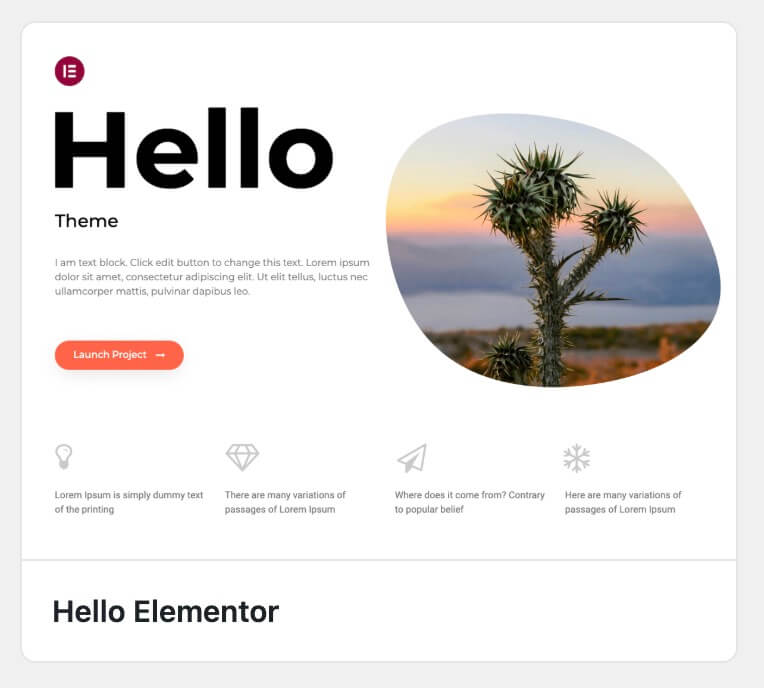
It is lightweight, simple, and designed to work well with Elementor. You can also use another Elementor-compatible theme, as long as it does not add too many unnecessary styles, scripts, page layouts, headers, footers, or design settings that may conflict with Elementor.
2. Install & activate Elementor and Elementor Pro / Pro Elements
Before using Elements Rocket components, make sure Elementor is installed and active on your WordPress website. At minimum, you need:
- Elementor
- Elementor Pro (preferred) or Pro Elements (free)
Having Elementor Pro is not strictly necessary – however, some Elements Rocket components do use Elementor Pro advanced widgets, and if you try to paste them without having Elementor Pro active, it will fail. The good news is that if do not have an Elementor Pro subscription active, you can use Pro Elements, which is an open-source alternative for Elementor Pro that gives you access to pretty much the same Elementor Pro widgets.
Note: Pro Elements is not installable through the WordPress “Add plug-in” page. You must download the plugin’s zip from their website and install it manually under WordPress > Plug-ins > Add new > Upload plugin > Upload the downloaded zip file. Elementor Pro is always the safest and preferred option, though.
3. Disable Elementor default colors and fonts
The next step is to disable Elementor’s default colors and fonts ( ! ). This helps prevent Elementor from forcing its own default styling over the Global Styles. Go to Elementor > Editor > Settings and then check the boxes for:
- Disable Default Colors
- Disable Default Fonts

Save the changes and then, go to Elementor > Editor > Tools and click the buttons to “Clear Files & Data” to clear old cached configurations.
4. If you are using Hello Theme
If you are using Hello Theme, you should also disable the default theme structure that may appear automatically on your pages. Go to Hello > Settings > Structure and Layout and then disable Theme header and footer and Page Titles, like so:
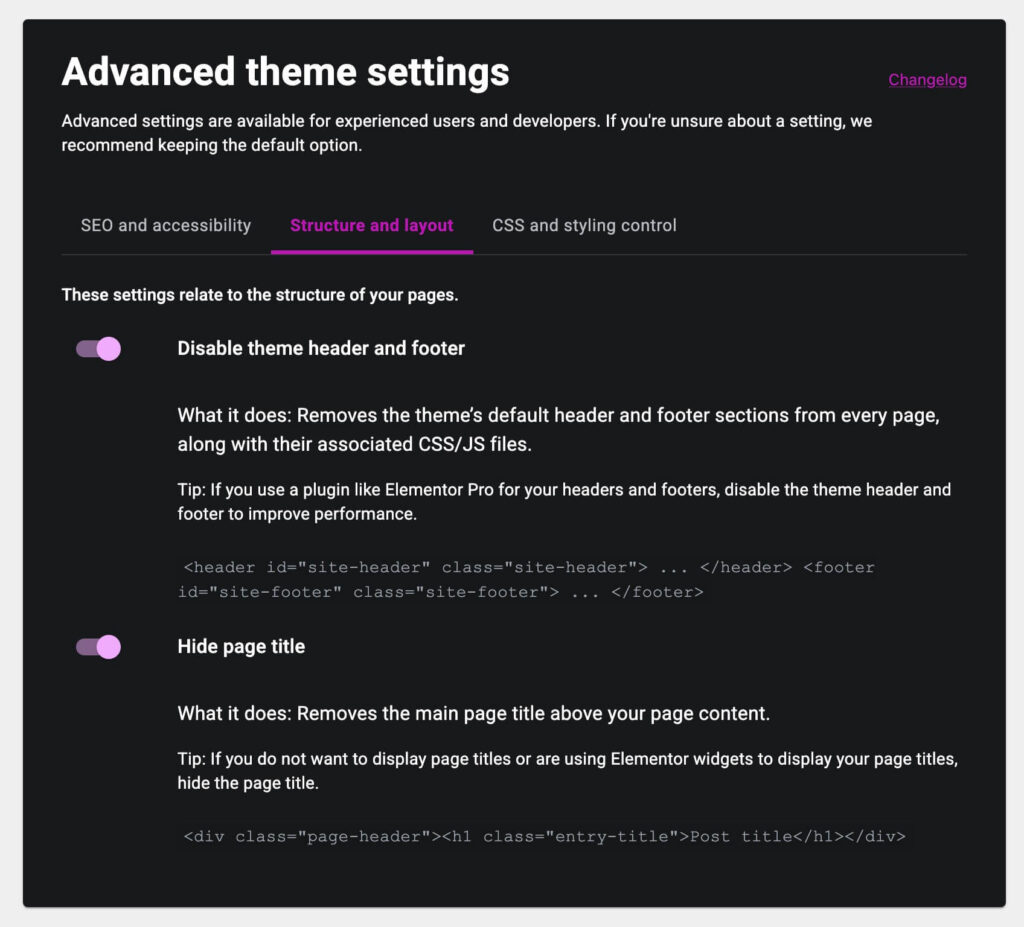
This is especially important if you plan to create your own headers and footers with Elementor (which you most likely do). If you leave the theme header or footer enabled, your website may show both the default Hello Theme structure and your custom Elementor structure. That can create duplicated headers, duplicated footers, unwanted spacing, and layout conflicts.
5. Make sure everything is up-to-date
Always make sure your website is running the latest versions of WordPress, theme and plugins.
6. Copying your first Elements Rocket component! 🙌
Now you’re ready to copy your first component! Go to Elements Rocket and browse the available components, blocks and pages. Choose the item you want to copy. For example, you may choose:
- A hero section;
- A header component;
- A footer component;
- A call-to-action block;
- …
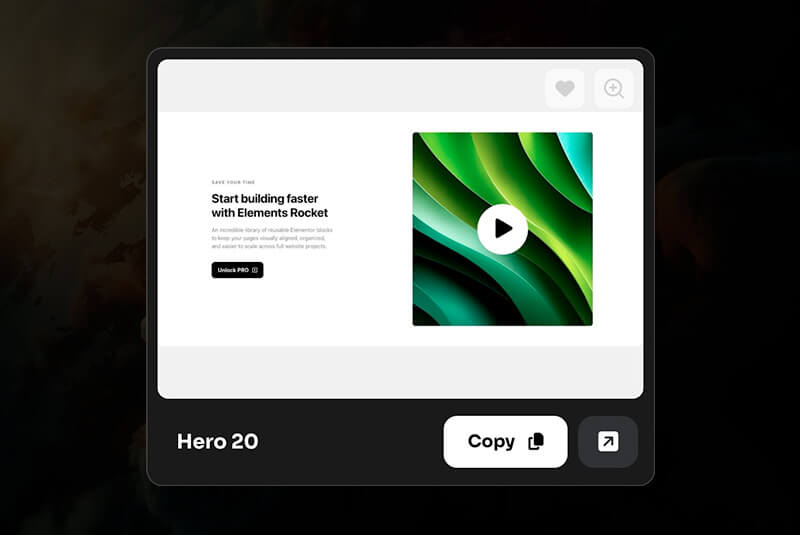
When you find the item you want, click the Copy button. Wait until the text inside the button says “Copied!“. This means the component was successfully copied and that it’s ready to be pasted it into your Elementor.
7. Open the Elementor Editor (on your website)
Open the Elementor page of your website where you want the component to go.
8. Pasting the content into Elementor
Once inside your Elementor Editor take these steps:
- Go to the bottom of the page;
- Right click inside the dotted rectangle box with the icons;
- Select Paste from another site:
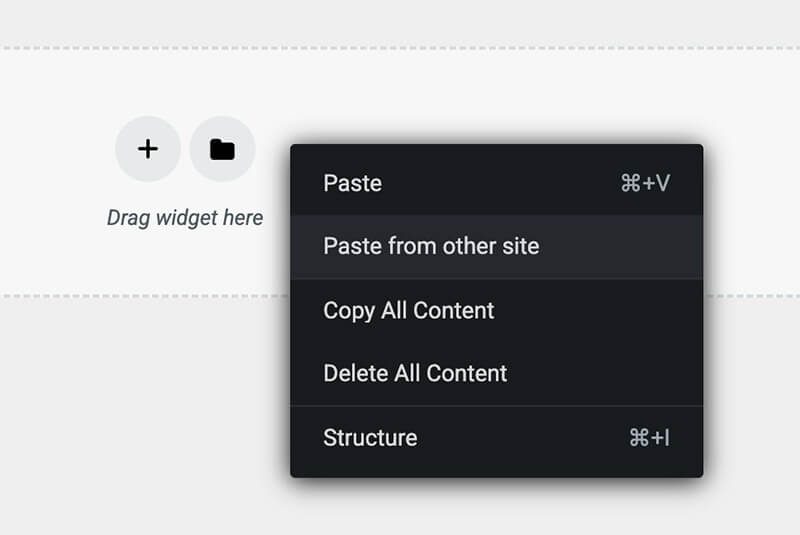
- After that, you’ll be prompted to press Ctrl + V (Win) or Cmd + V (Mac) to confirm. Do that.
Elementor will then paste the Elements Rocket component into your page.
Important: Do NOT try to paste inside an existing section, container, column, or widget because the pasting will fail. All content must be pasted at the end of the page.
Troubleshooting: If you get an error when pasting, please take a look at this Support Guide: Copy & Paste is not working.
9. Global styles in Elements Rocket
Elements Rocket components are built using Elementor global styles. They will follow the global colors and global fonts configured on your website (in the Elementor Site Settings). That means that, instead of using fixed styles everywhere, the components adapt to your project automatically.
This is super cool because it allows you to paste different Elements Rocket components into the same website and keep a consistent visual identity across the whole website. For example, if you change your primary color, text color, heading font, or button typography in Elementor global styles, all ER components will automatically follow those settings, making customization much faster. Instead of editing each component manually, you can control the overall design system from one place.
Using the default Elements Rocket global styles
If you want the components to look exactly like they do in the Elements Rocket previews, you can download and import the default Elements Rocket Global Styles settings from the “Default Style Kit” page. This is optional, but it can be useful when you want to start with the same visual foundation used in the previews and then customize from there. However, be careful: importing a style kit will replace the global styles currently present on your website, meaning that if your website already has custom colors, fonts, or global design settings, they will be replaced during the import. For that reason, we recommend importing the default Elements Rocket global styles only on new projects, test websites, or websites where you are comfortable replacing the existing global style settings.
10. TL;DR – Quick setup checklist
Use this checklist before working with Elements Rocket:
- Install Hello Theme or another Elementor-compatible theme;
- Install Elementor, Elementor Pro / Pro Elements
- Go to Elementor > Editor > Settings
- Disable Default Colors
- Disable Default Fonts;
- If using Hello Theme, go to Hello > Settings > Structure and Layout;
- Disable theme headers and footers;
- Hide page titles;
- Make sure everything is up to date;
- Select and copy an item from Elements Rocket;
- Open your website page with Elementor;
- Right-click the dotted box at the end of the page;
- Click Paste from another site;
- Press Ctrl + V (Win) or Cmd + V (Mac) when prompted
Final thoughts
Using Elements Rocket is super simple, and this guide could have been much shorter, but we wanted to be very thorough. The key to consistent projects is starting with the right foundation. This workflow helps you avoid common issues and lets you build faster with ready-to-use Elementor components, blocks, and pages.
Need further help?
Most common issues can be resolved through the articles. However, if you need further help, we’re here for you. Reach out to us at [email protected]