
Building a professional blog in Elementor is not only about designing a nice post page. To create a scalable blog layout, you need to understand how Elementor templates work, how single post templates are applied, how loop items are displayed, and how components from Elements Rocket can speed up the process.
Elements Rocket gives you ready-to-use Elementor components, blocks, and pages that you can copy and adapt to your own website. For blog layouts, two of the most useful component types are Blog Single Post components and Blog Loop Item components.
First of all
A Blog Single Post component helps you design the layout of an individual blog post. A Blog Loop Item component helps you design the repeated card that appears in blog grids, archive pages, related posts sections, and post listing areas.
In this guide, you will learn what these templates are, where to create them in Elementor, how to use display conditions, how to work with Loop Grid, and how Elements Rocket can help you build a better blog faster.
What are Elementor templates?
In Elementor, a template is a reusable design layout that can be saved, edited, and applied across your website. Templates help you avoid rebuilding the same design manually on every page. Elementor explains that templates are reusable designs that can help save time when creating or editing pages. Some templates are also considered “site parts” and are accessed mainly through Theme Builder, such as headers, footers, single post templates, and archive templates.
For blogs, templates are especially important because most post pages should follow the same structure. Instead of designing every blog post from scratch, you create one Single Post template and let Elementor apply it automatically to your posts.
Where is it in the WordPress Menu?
All Elementor templates can be found under Elementor > Templates > Theme Builder and also at Elementor > Editor > Templates. Exactly where all the other templates are (header, footer, etc).
What is a Blog Single template?
A Blog Single Post template controls the design of individual blog posts.
For example, when someone clicks on a blog article, the page they see can be controlled by a Single Post template. This template can include elements such as:
- Post title;
- Featured image;
- Author name;
- Publish date;
- Post category;
- Post content;
- Social sharing buttons;
- Author box;
- Related posts;
- Newsletter signup;
- Call-to-action section;
- And many others.
Example of a Blog Single Template:
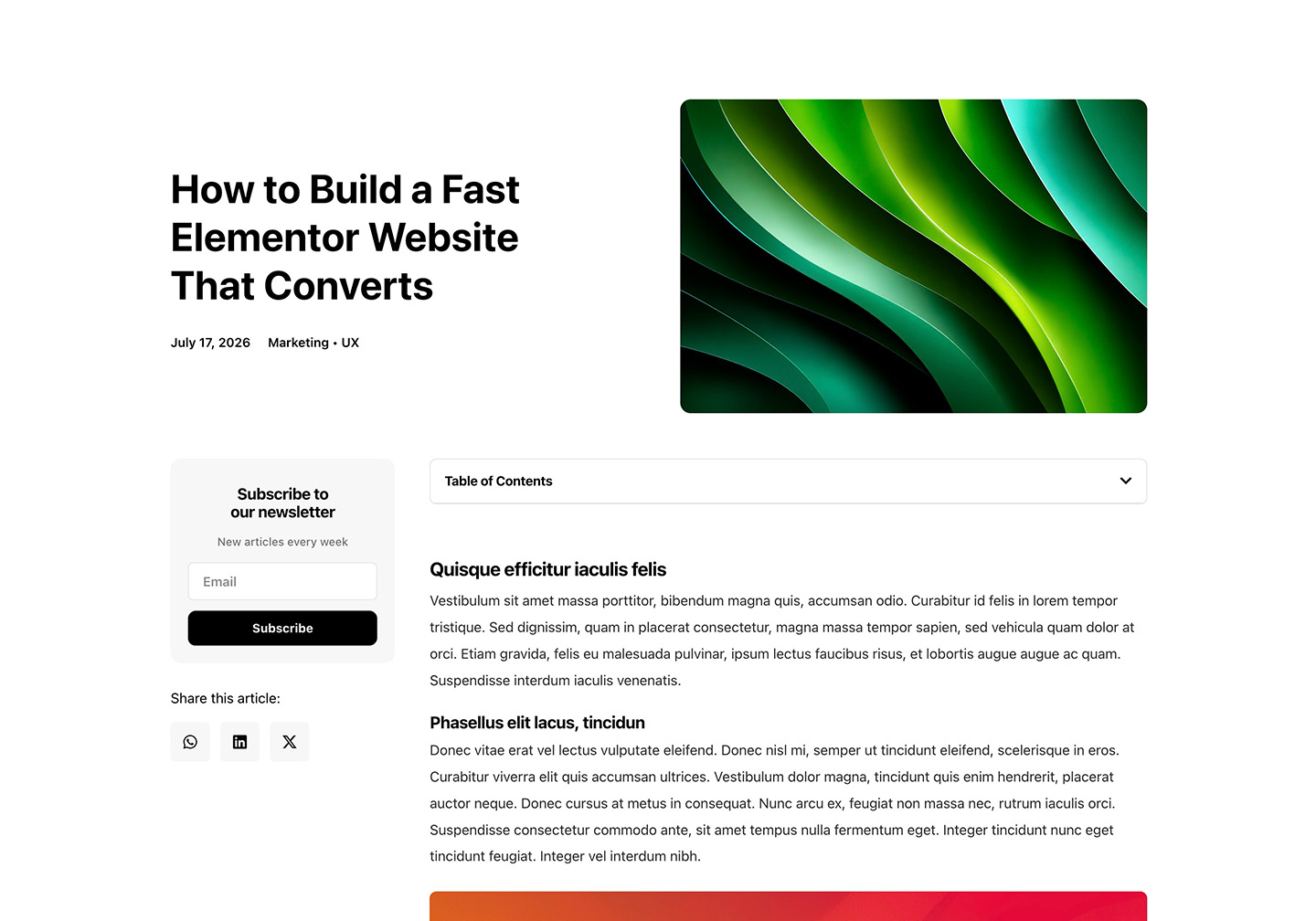
The most important thing to understand is that a Blog Single Post template is dynamic. You design the layout once, and Elementor automatically pulls the titles, images, contents, dates, and other dynamic information from each individual post.
What is a Blog Loop template?
A Blog Loop Item template controls the design of each repeated post card inside a post grid or listing.
For example, on a blog archive page, you may have a grid of posts. Each post card may include:
- Featured image;
- Post title;
- Excerpt;
- Category;
- Date;
- Author;
- Read more link;
- And others.
Example of a Blog Loop Item template:

Instead of designing each card manually, you create a Loop Item template and apply it using Elementor’s Loop Grid widget. Elementor then repeats that design for every post shown in the Loop Grid.
This is where Elements Rocket components come extremely handy. You can start with a ready-made blog card design, paste it into the Loop Item template, and customize it to match your website (if you want).
How Elements Rocket helps with Elementor blog templates
Elements Rocket is designed to help Elementor users build faster with ready-to-use components, blocks, and pages.
For blog projects, this means you do not need to start every blog layout from a blank canvas. Instead, you can copy a ready-made Blog Single Post component or Blog Loop Item component and adapt it to your site.
This helps you:
- Save time during setup;
- Avoid repetitive design work;
- Create more polished blog layouts;
- Keep design consistent across the website;
- Launch client websites faster;
- Build more projects without lowering quality.
For freelancers and agencies, this can also improve profitability. If you can build a professional blog structure faster, you can spend more time on strategy, SEO, content structure, performance, and client-specific customization.
How to use an Elements Rocket Blog Single Post component
To use a Blog Single Post component from Elements Rocket, you need to create or edit a Single Post template inside Elementor Theme Builder.
Step 1: Go to Theme Builder
From your WordPress dashboard, go to: Elementor > Theme Builder. Inside Theme Builder, you will see different site parts, such as Header, Footer, Single Post, Single Page, Archive, and more. In this article, we’ll create one Blog Single Post template and one Blog Loop Item. Let’s start with the Single Post template.
Step 2: Create a new Single Post template
Inside Theme Builder, create a new Single Post template. This template will control how your individual blog posts appear on the frontend. Give the template a clear name, such as “Single Post – Articles”, for example.
Step 3: Copy & paste the Blog Single Post component from Elements Rocket
Go to Elements Rocket and choose the Blog Single Post component you want to use. Copy the component and paste it into the Elementor editor of the template you’ve just created.
The component will give you a ready-made structure that you can customize with your own colors, fonts, spacing, content layout, and brand style;
Step 4: Familiarize yourself with the dynamic widgets
A Single Post template uses dynamic widgets so Elementor can automatically display the correct content for each post. The Post Content widget is especially important because it’s the one that displays the actual content written inside each WordPress post.
Step 5: Publish and set the conditions
After customizing the template, click Publish.
Elementor will ask you to set display conditions. Display conditions tell Elementor where this template should appear. Click to add a condition. For a default blog post template, you can usually set: Include > Posts > All.
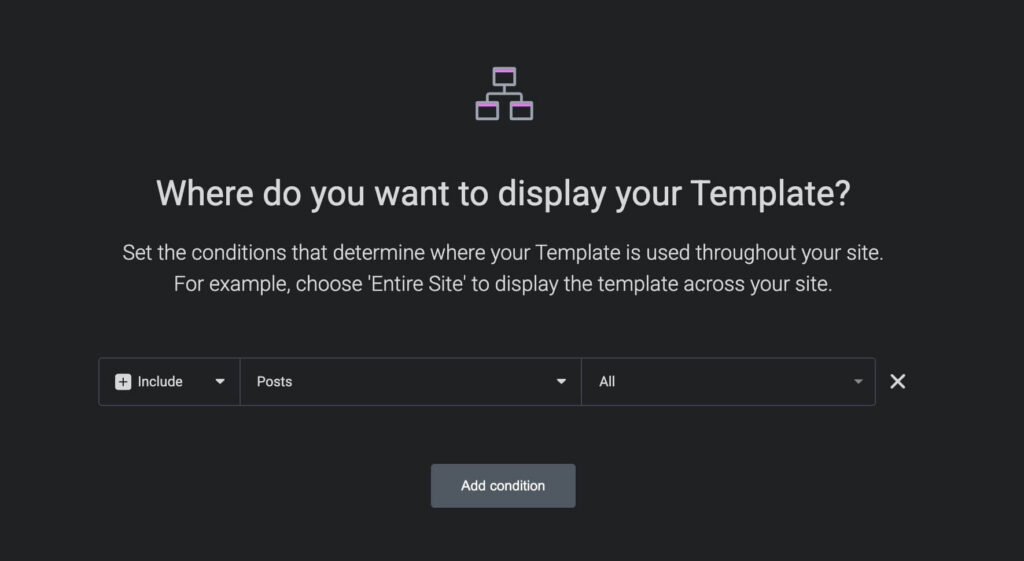
This means the template will be used for all blog posts. If you’d like, you can set more complex conditions to have multiple template layouts for different contents in your website.
Step 7: See it in action!
After publishing the template, open one of your blog posts and check how they look. If you have no blog posts in your website, naturally, you’ll have to create your first one! Remember to add at least a title, featured image and text content to check out how the template actually looks.
How to use an Elements Rocket Blog Loop Item component
A Blog Loop Item component is used inside Elementor’s Loop Builder and Loop Grid widget.
This is different from a Single Post template. Instead of controlling the full article page, the Loop Item controls how each post preview appears inside a list or grid.
Step 1: Create or edit the page where posts will appear
First, decide where you want to display your blog posts. Open that page in Elementor.
Step 2: Add the Loop Grid widget
Inside the Elementor editor, add the Loop Grid widget to the page.
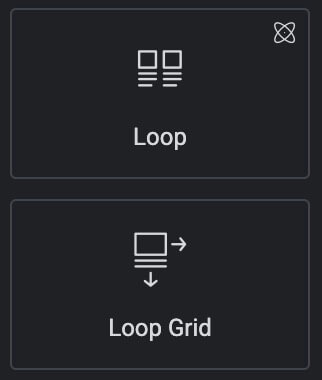
The Loop Grid widget is used to display dynamic lists of content, including blog posts. Loop Grid allows you to create flexible dynamic grid layouts based on a single template.
Step 3: Create a new Loop Item template
When you add the Loop Grid widget, Elementor will ask you to create or choose a Loop Item template. Create a new Loop Item template and name it give it a clear name. This template will control the visual design of each repeated post card.
Step 4: Copy the Blog Loop Item component from Elements Rocket
Go to Elements Rocket and choose a Blog Loop Item component. Copy the component and paste it into your Loop Item template in Elementor. This gives you a ready-made post card layout that can include elements such as the featured image, category, post title, excerpt, date, and others.
Now customize the Blog Loop Item component to match your brand and layout.
Step 7: Save the Loop Item template
After customizing the component, save/publish the Loop Item template.
This will take you back to your page, out of the Loop Item. Now, make sure your new Loop Item template is selected.
Step 8: Configure the Loop Grid query
After selecting the Loop Grid, customize its query. The query controls which content will appear in the loop grid and in what order. By default, loops display items chronologically, starting with the most recent item.
Depending on your page, you may want to show:
- All posts;
- Latest posts;
- Posts from a specific category;
- Posts with a specific tag;
- Related posts;
- Posts by a specific author;
- Others.
For example, on a homepage, you may want to show only the latest three posts. On a blog page, you may want to show all posts with pagination. On a category page, you may want the grid to display only posts from that category.
Step 9: Adjust columns, spacing, and pagination
Once the query is set, adjust the layout of the Loop Grid. You can configure:
- Number of columns;
- Number of posts per page;
- Gap between cards;
- Pagination;
- Masonry layout, if available;
- Responsive columns for tablet and mobile.
A common layout is three columns on desktop, two columns on tablet, and one column on mobile. Please note that all templates (including Loop Item templates) can be found in the Elementor menu, in the WordPress dashboard, as specified earlier in the article.
That’s it!
The Single Post component helps you create the full layout for individual articles. The Loop Item component helps you design the repeated post cards used in blog grids, archive pages, related posts sections, and other dynamic listings.
When combined with Elementor Theme Builder, display conditions, Loop Grid, and dynamic content, these components give you a powerful workflow for building scalable blog layouts.
Start with a clean template structure, connect the correct dynamic widgets, set the right display conditions, configure your Loop Grid query, and test everything across devices.
With the right setup, you can turn Elements Rocket components into a fast, flexible, and professional blog-building system for any Elementor website.