
Elements Rocket can now also be used as a browser extension, making it even easier to use ready-to-copy Elementor components, blocks, and pages directly inside your Elementor editor!
In this article, you will learn how to install it and how to use it.
What is the Elements Rocket browser extension?
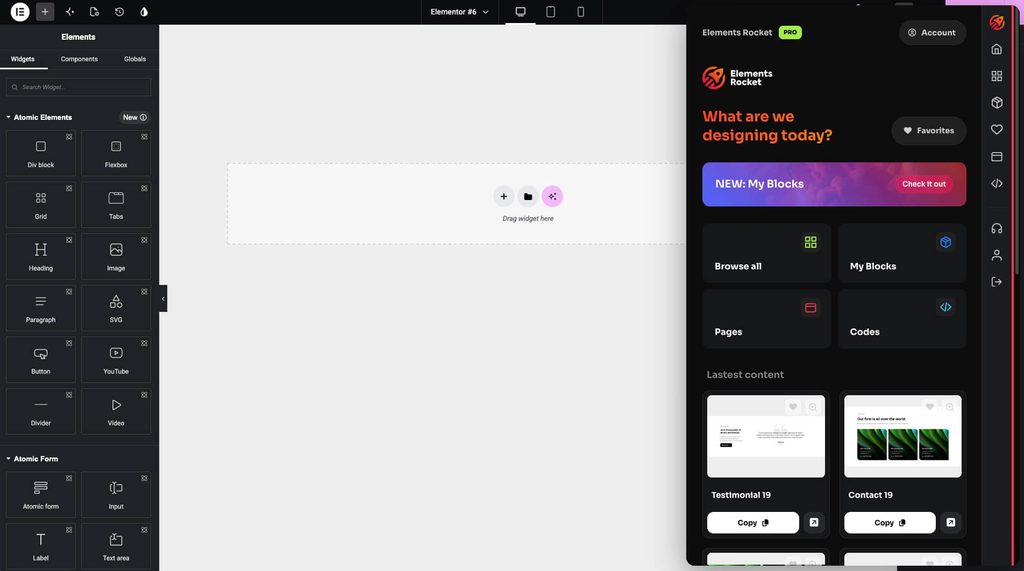
The Elements Rocket browser extension brings the full Elements Rocket experience into your Elementor editor. Instead of opening Elements Rocket in a separate browser tab, you can open the extension and have it float over your Elementor editor, allowing you to browse and copy components without switching between tabs.
Available browsers
The Elements Rocket extension is currently available for Google Chrome and Mozilla Firefox. You can install it using the official browser extension pages below:
- Chrome: Install Elements Rocket for Chrome
- Firefox: Install Elements Rocket for Firefox
How to install the Elements Rocket extension
To install the extension:
- Open up the desired browser extension (Chrome or Firefox).
- Click the button to add/install the extension.
- Confirm the installation when the browser asks for permission.
- Wait until the extension is installed.
- Done!
After installation, the Elements Rocket icon should be available in your browser extensions area. You can then pin it to your browser toolbar to get faster access.
IMPORTANT: Chrome and Firefox do not allow opening extensions in pages like the “Add-ons/Extensions Web Store” (where you installed the extension), the “new tab page” (when you open a new tab) among a few others. If you try opening the extension on those pages, right away, nothing will happen. That is a normal, expected behavior.
How to use the Elements Rocket extension
Using the Elements Rocket browser extension is super simple:
- Open up your Elementor editor and click the Elements Rocket extension icon.
- The extension window will appear.
- Browse Elements Rocket normally from there.
- Choose the item you want to use.
- Click Copy.
- Paste the component into your Elementor using the “Paste from another site” option.
- If you wish to close the extension, simply click the extension icon again (like you did to open it).
The extension lets you keep the Elements Rocket library open while you work, making it easier to test different sections and build pages faster.
How to paste a copied component into Elementor
The process is exactly the same as if you were using Elements Rocket in a separate tab. After copying an item from the Elements Rocket extension, in your Elementor editor, go to the bottom of the page and find the dotted box used to add a new section or container. Then:
- Right-click the dotted box at the end of the page.
- Click Paste from another site.
- Press Ctrl + V on Windows or Cmd + V on Mac.
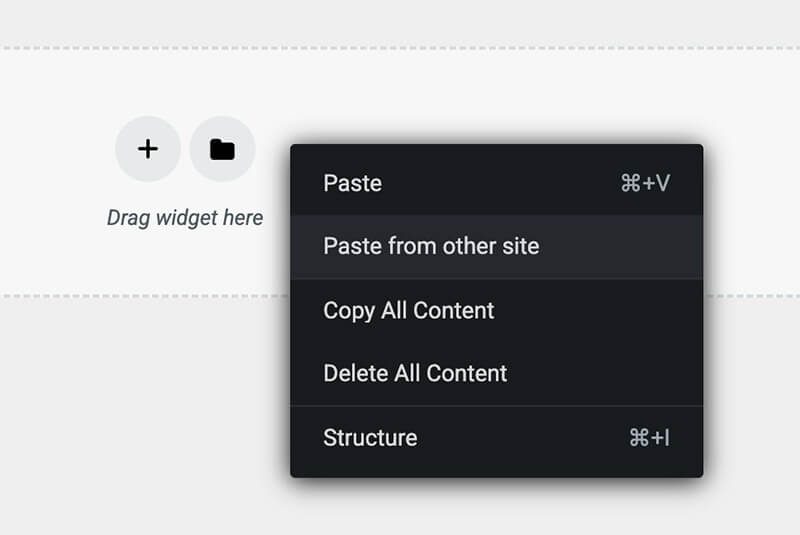
Do not paste the component inside an existing section because Elementor may block it. Always paste inside the dotted box at the end of the Elementor editor. If you’re facing any issues, please refer to the Copy & paste is not working support guide at our Support Center.
Troubleshooting:
The Elements Rocket browser extension is currently in beta. We’ve tested it extensively and found no bugs, but issues may still come up – specially because browser extensions depend heavily on each user’s browser settings.
If the extension is not working for you, please let us know at [email protected] so we can investigate further.
Need further help?
Most common issues can be resolved through the articles. However, if you need further help, we’re here for you. Reach out to us at [email protected]